How to Resize Images for Social Media — Complete Size Guide 2026
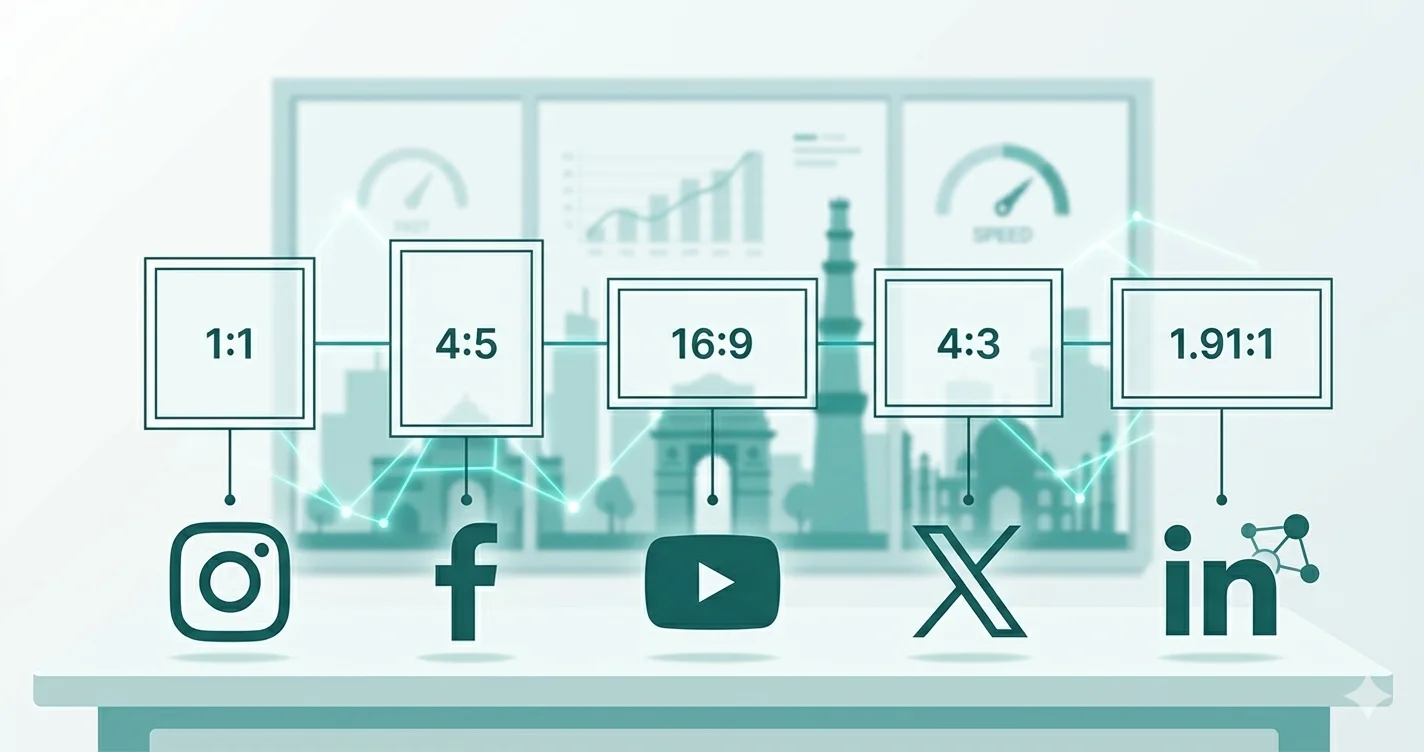
Using the wrong image size on social media means your photos get cropped, stretched, or blurred — and that makes your profile look unprofessional. Every platform has its own recommended dimensions, and they change more often than most people realize. This guide gives you the exact sizes for every major platform in 2026 so you never have to guess again.
Why Image Size Matters on Social Media
Social media platforms automatically resize and compress images when you upload them. If your image is not the right size to begin with, the platform crops it in unexpected places or compresses it so heavily that it looks blurry. Getting the dimensions right before uploading means:
- No unexpected cropping on profile pictures or covers
- Sharper images because the platform compresses less
- Better engagement — clear visuals get more clicks and saves
- Consistent branding across all your posts
Instagram Image Sizes 2026
| Image Type | Recommended Size | Aspect Ratio |
|---|---|---|
| Profile Picture | 320 × 320 px | 1:1 |
| Square Post | 1080 × 1080 px | 1:1 |
| Portrait Post | 1080 × 1350 px | 4:5 |
| Landscape Post | 1080 × 566 px | 1.91:1 |
| Story / Reel | 1080 × 1920 px | 9:16 |
| Carousel Post | 1080 × 1080 px | 1:1 |
Pro tip: For Instagram feed posts, the 4:5 portrait format (1080×1350) takes up the most screen space in the feed, which means more visibility and better engagement.
Facebook Image Sizes 2026
| Image Type | Recommended Size | Aspect Ratio |
|---|---|---|
| Profile Picture | 170 × 170 px | 1:1 |
| Cover Photo | 820 × 312 px | 2.63:1 |
| Feed Post (landscape) | 1200 × 630 px | 1.91:1 |
| Feed Post (square) | 1080 × 1080 px | 1:1 |
| Story | 1080 × 1920 px | 9:16 |
| Event Cover | 1920 × 1005 px | 1.91:1 |
YouTube Image Sizes 2026
| Image Type | Recommended Size | Aspect Ratio |
|---|---|---|
| Channel Art / Banner | 2560 × 1440 px | 16:9 |
| Profile Picture | 800 × 800 px | 1:1 |
| Video Thumbnail | 1280 × 720 px | 16:9 |
Pro tip: YouTube thumbnails are one of the most important images for your channel. Use 1280×720px (HD) and keep the file under 2MB. JPG format works best for thumbnails.
Twitter / X Image Sizes 2026
| Image Type | Recommended Size | Aspect Ratio |
|---|---|---|
| Profile Picture | 400 × 400 px | 1:1 |
| Header / Banner | 1500 × 500 px | 3:1 |
| Post Image | 1200 × 675 px | 16:9 |
| Card Image | 800 × 418 px | 1.91:1 |
LinkedIn Image Sizes 2026
| Image Type | Recommended Size | Aspect Ratio |
|---|---|---|
| Profile Picture | 400 × 400 px | 1:1 |
| Cover / Banner | 1584 × 396 px | 4:1 |
| Post Image | 1200 × 627 px | 1.91:1 |
| Company Logo | 300 × 300 px | 1:1 |
| Company Cover | 1128 × 191 px | 5.91:1 |
How to Resize Images for Social Media — Step by Step
You do not need Photoshop or any paid software to resize images for social media. WebAuzar's free tools handle everything in your browser.
Step 1 — Resize to Exact Dimensions
- Open the free image resizer on WebAuzar
- Upload your image
- Select "By Dimensions" mode
- Enter the width and height from the table above
- Disable aspect ratio lock if you need exact dimensions
- Download your resized image
Step 2 — Crop to the Right Aspect Ratio
If your image has different proportions than the target size, use the crop tool first to get the right aspect ratio, then resize.
- Open the free image cropper on WebAuzar
- Upload your image
- Select the aspect ratio preset — 1:1, 4:3, 16:9, or freeform
- Adjust the crop area
- Download the cropped image
- Then resize to exact pixel dimensions
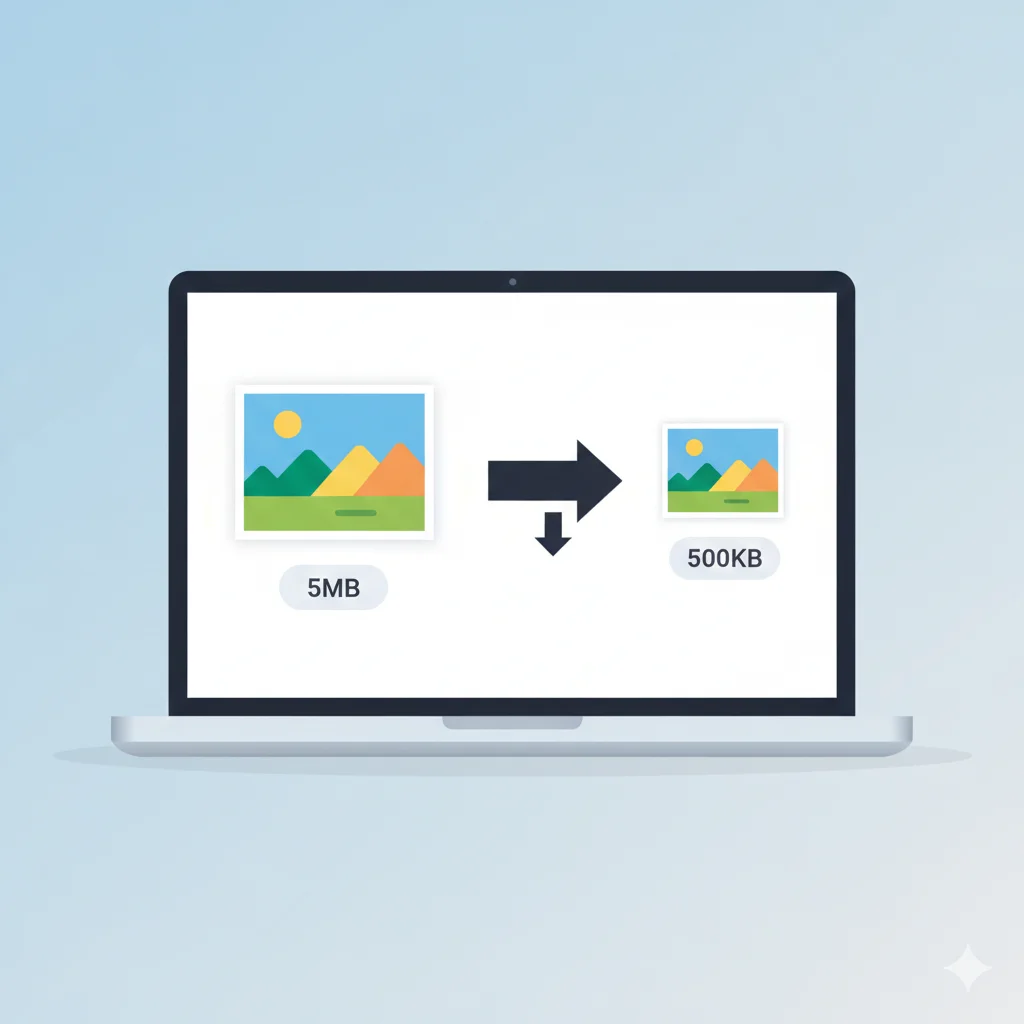
Step 3 — Compress Before Uploading
Even after resizing, images can still be large. Social media platforms compress your images automatically, which often causes quality loss. Compressing yourself first gives you control over the output quality.
- Open the free image compressor
- Upload your resized image
- Choose 85% quality for social media posts
- Download and upload to your platform
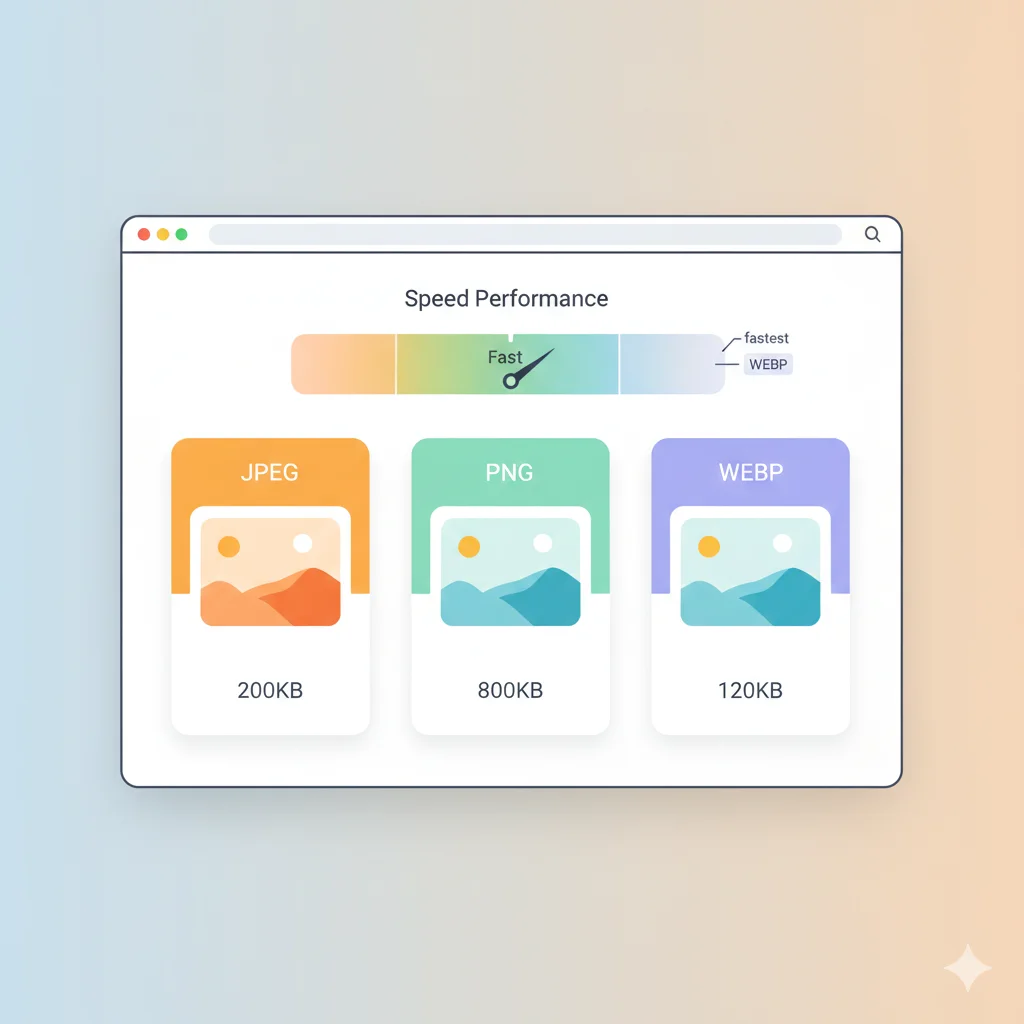
Which Format Should You Use for Social Media?
| Use Case | Best Format | Why |
|---|---|---|
| Profile pictures | PNG | Sharp edges, no artifacts |
| Photos and posts | JPG | Small size, good quality |
| Graphics with text | PNG | Text stays crisp |
| YouTube thumbnails | JPG | Fast loading |
| Logos on social | PNG | Transparency support |
Common Mistakes to Avoid
- Uploading oversized images — A 6000×4000px photo uploaded to Instagram gets compressed heavily. Always resize first.
- Using the wrong aspect ratio — A 16:9 image uploaded as an Instagram post gets cropped to 1:1 automatically, cutting off important parts.
- Relying on the platform to resize — Platform compression is aggressive. Your manually resized and compressed image will always look sharper.
- Using PNG for all photos — PNG files are much larger than JPG. For photographs, JPG at 85% quality is the better choice.
Batch Resizing Multiple Images
If you have a series of images to resize for the same platform — for example, 10 product photos for Instagram — WebAuzar supports bulk processing. Upload all images at once, set the dimensions once, and download everything as a ZIP file.
Conclusion
Getting social media image sizes right is one of the simplest ways to make your profile look polished and professional. Use the tables above as your reference, resize your images before uploading, and compress them for the sharpest possible result after platform compression.
All tools you need are free on WebAuzar — no signup, no software installation, and no file uploads to any server.