JPG to PNG vs PNG to JPG: When and Why You Should Convert
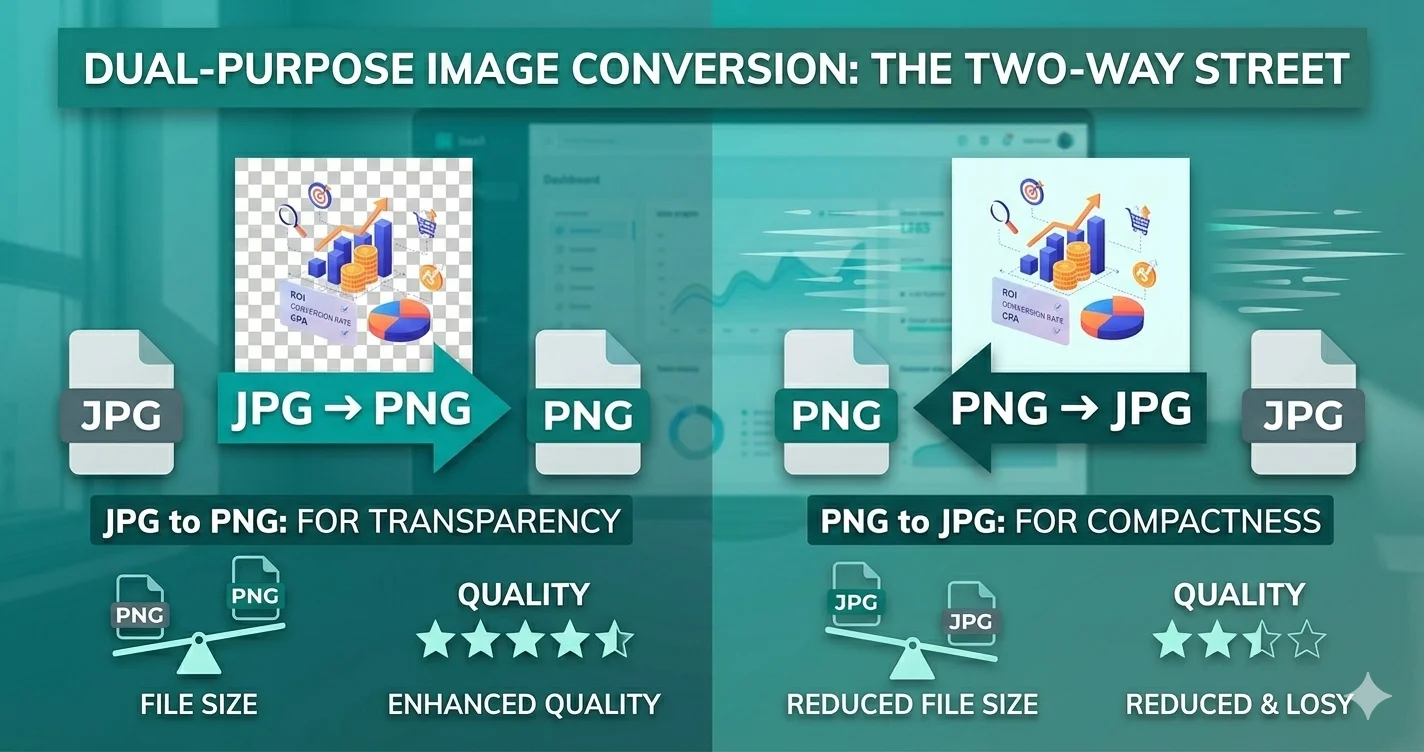
One of the most common questions we get is: "Should I convert my JPG to PNG or PNG to JPG?"The answer isn't always straightforward because each format has its own strengths and weaknesses. In this guide, we'll help you understand when and why you should convert between these two popular formats.
Quick Refresher: JPG vs PNG
| Feature | JPG (JPEG) | PNG |
|---|---|---|
| Compression | Lossy | Lossless |
| Transparency | ❌ Not supported | ✅ Supported |
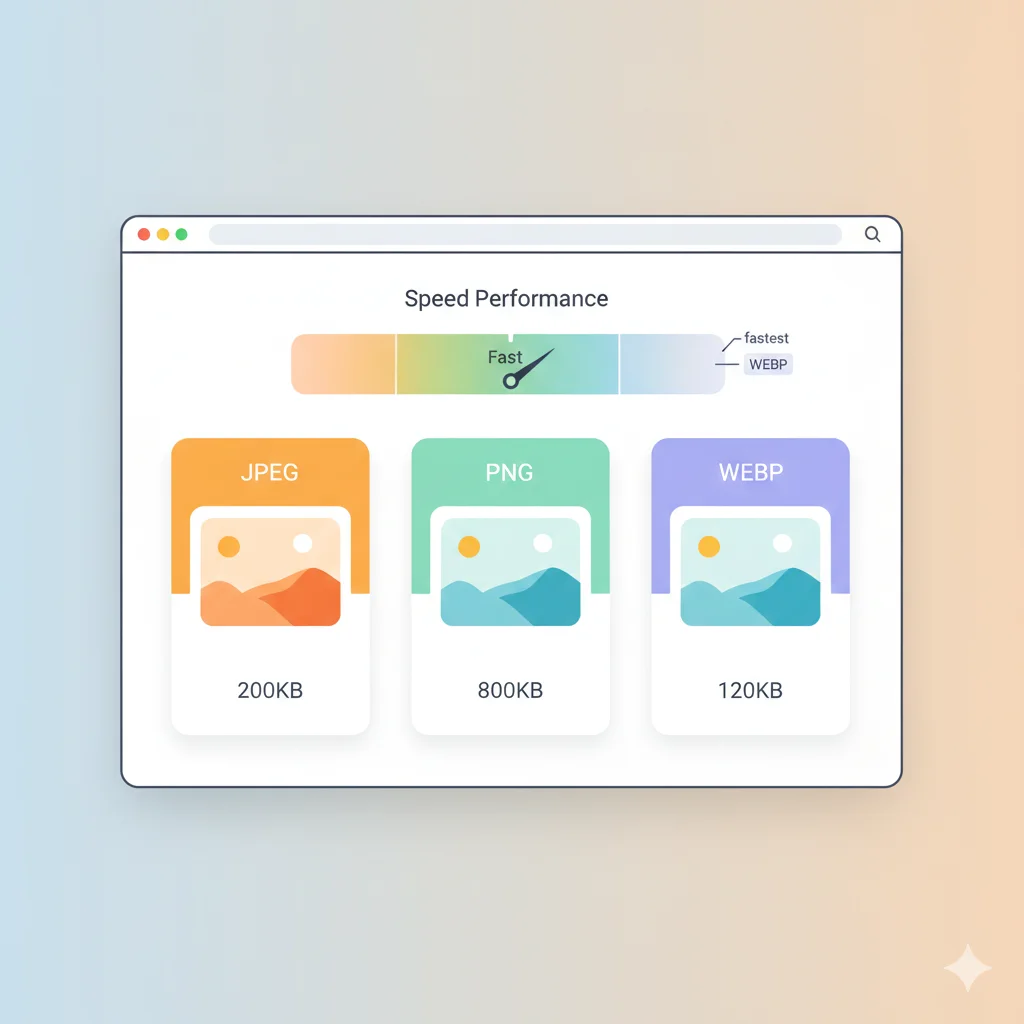
| File Size | Small (2-5x smaller) | Large |
| Best For | Photographs, web images | Logos, graphics, screenshots |
| Color Depth | 24-bit (16.7 million colors) | 24/32-bit (millions of colors + alpha) |
When to Convert JPG to PNG
Converting from JPG to PNG makes sense in these scenarios:
1. You Need Transparency
The most common reason to convert JPG to PNG is to add transparency. JPG doesn't support transparent backgrounds, while PNG does. This is essential for:
- Logos - Need to sit on different colored backgrounds
- Icons - Should blend seamlessly with any design
- Watermarks - Overlay images without blocking background
- Product images - Remove backgrounds for e-commerce
Try our JPG to PNG converter to add transparency to your images.
2. You Need Lossless Quality
If you're going to edit an image multiple times, JPG's lossy compression will degrade quality with each save. Converting to PNG preserves every pixel perfectly:
- Graphic design work - Multiple rounds of editing
- Screenshots with text - JPG creates artifacts around text
- Line art and diagrams - Sharp edges are preserved
- Images with text overlays - Text remains crisp and readable
3. You Have Images with Sharp Edges or Text
JPG compression creates artifacts around sharp edges and text. If your image contains:
- Screen captures with UI elements
- Infographics with text labels
- Charts and graphs
- Images with logos or branding
PNG will maintain crisp, clear edges while JPG will introduce blurring and artifacts.
When to Convert PNG to JPG
Converting from PNG to JPG is beneficial in these situations:
1. You Need Smaller File Sizes
PNG files can be 2-5x larger than equivalent JPGs. Convert to JPG when:
- Website performance - Larger files slow down page loads
- Email attachments - Stay under size limits
- Storage optimization - Save disk space and bandwidth
- Mobile users - Faster downloads on slow connections
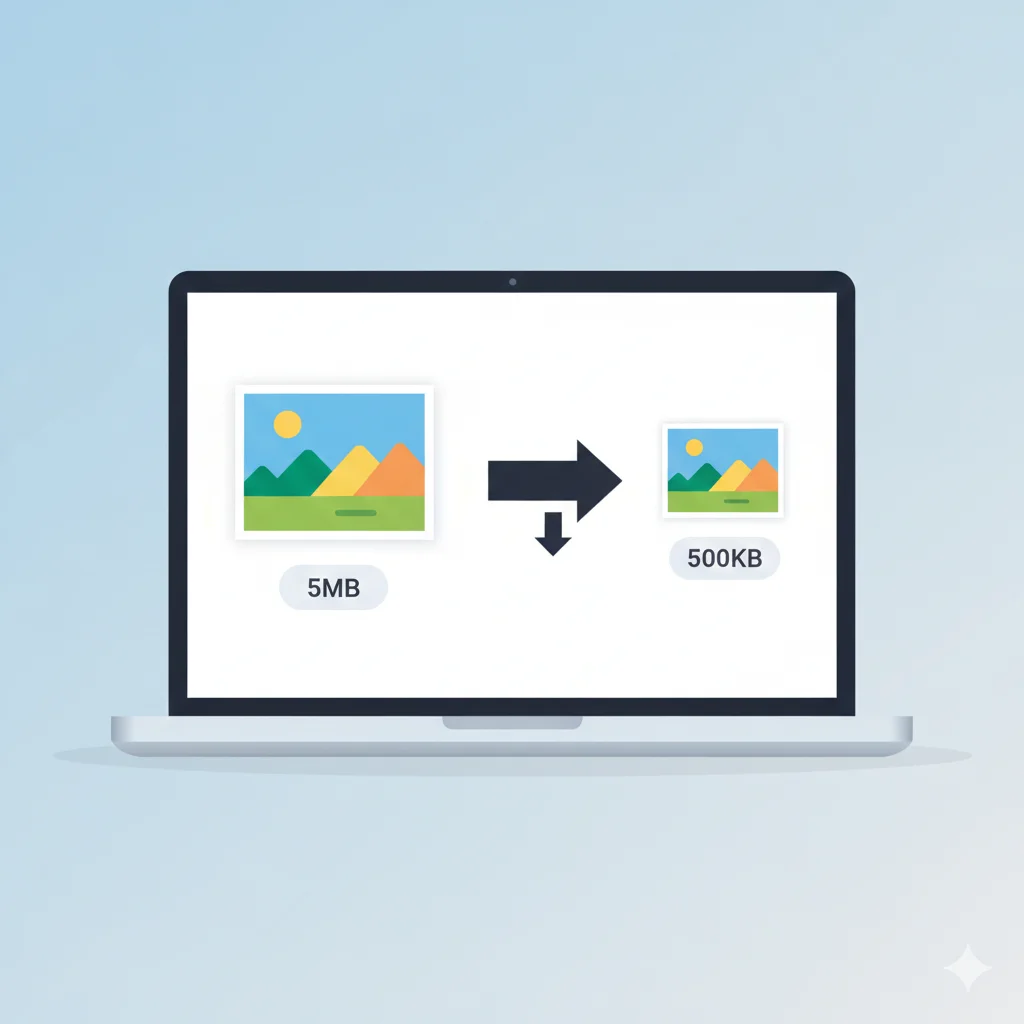
A typical photograph saved as PNG might be 2-3MB, but the same image as JPG could be just 300-500KB with minimal visible quality loss.
2. You're Working with Photographs
For natural images like photos, landscapes, and portraits, JPG is almost always the better choice:
- Photos don't need transparency
- JPG's lossy compression is optimized for natural scenes
- The file size savings are dramatic
- Quality loss is barely noticeable at good settings
3. You Don't Need Transparency
If your image doesn't require a transparent background, converting to JPG will save significant bandwidth and storage without sacrificing visible quality.
4. For Social Media and Web Sharing
Most social media platforms automatically compress images, and they prefer JPG for photos:
- Instagram, Facebook, Twitter all optimize JPGs efficiently
- PNGs are often recompressed anyway, wasting the lossless advantage
- Faster upload times with smaller JPG files
Practical Examples
Example 1: E-commerce Product Photos
Scenario: You're selling products online and need product images.
Solution: Use JPG for the actual product photos (smaller files, faster loading), but use PNG for the product thumbnails with transparent backgrounds that sit on colored category pages.
Example 2: Blog Post with Screenshots
Scenario: Writing a tutorial with screenshots of software interfaces.
Solution: PNG is better here because screenshots contain text and UI elements that need to remain sharp. The slightly larger file size is worth the clarity.
Example 3: Photography Portfolio
Scenario: Showing off high-quality photographs.
Solution: Definitely JPG. You can use high-quality settings (85-90%) to maintain visual quality while keeping files manageable for web viewing.
The Conversion Process
Converting between formats is simple with our free tools:
JPG to PNG Conversion
- Visit JPG to PNG converter
- Upload your JPG files
- Download as PNG with transparency support
PNG to JPG Conversion
- Visit PNG to JPG converter
- Upload your PNG files
- Choose background color (white, black, or custom)
- Adjust quality settings (70-90% recommended for web)
- Download optimized JPG files
Batch Processing Multiple Images
Need to convert many images at once? Use our image compressorwhich supports batch conversion between formats and simultaneous compression.
Quality Settings Guide
When converting to JPG, quality settings matter:
- 90-100% - Maximum quality, large files (for printing, archival)
- 80-90% - Excellent quality, good file size (for websites, portfolios)
- 70-80% - Good quality, smaller files (for social media, email)
- 50-70% - Acceptable quality, very small files (for thumbnails, previews)
- Below 50% - Visible artifacts, only for specific use cases
Conclusion: Which Conversion Should You Choose?
Convert JPG to PNG when:
- ✅ You need transparency in your images
- ✅ You're working with graphics, logos, or icons
- ✅ Your images contain text or sharp lines
- ✅ You need lossless quality for editing
Convert PNG to JPG when:
- ✅ You're working with photographs or complex images
- ✅ File size is important for web performance
- ✅ You don't need transparency
- ✅ You're sharing on social media or email
Remember, there's no one-size-fits-all answer. The best format depends on your specific needs. When in doubt, ask yourself: "Do I need transparency? Do I prioritize quality or file size?"
Ready to convert your images? Try our free tools: