Signature Upload Requirements for Government Exams: Size, Format & Common Mistakes
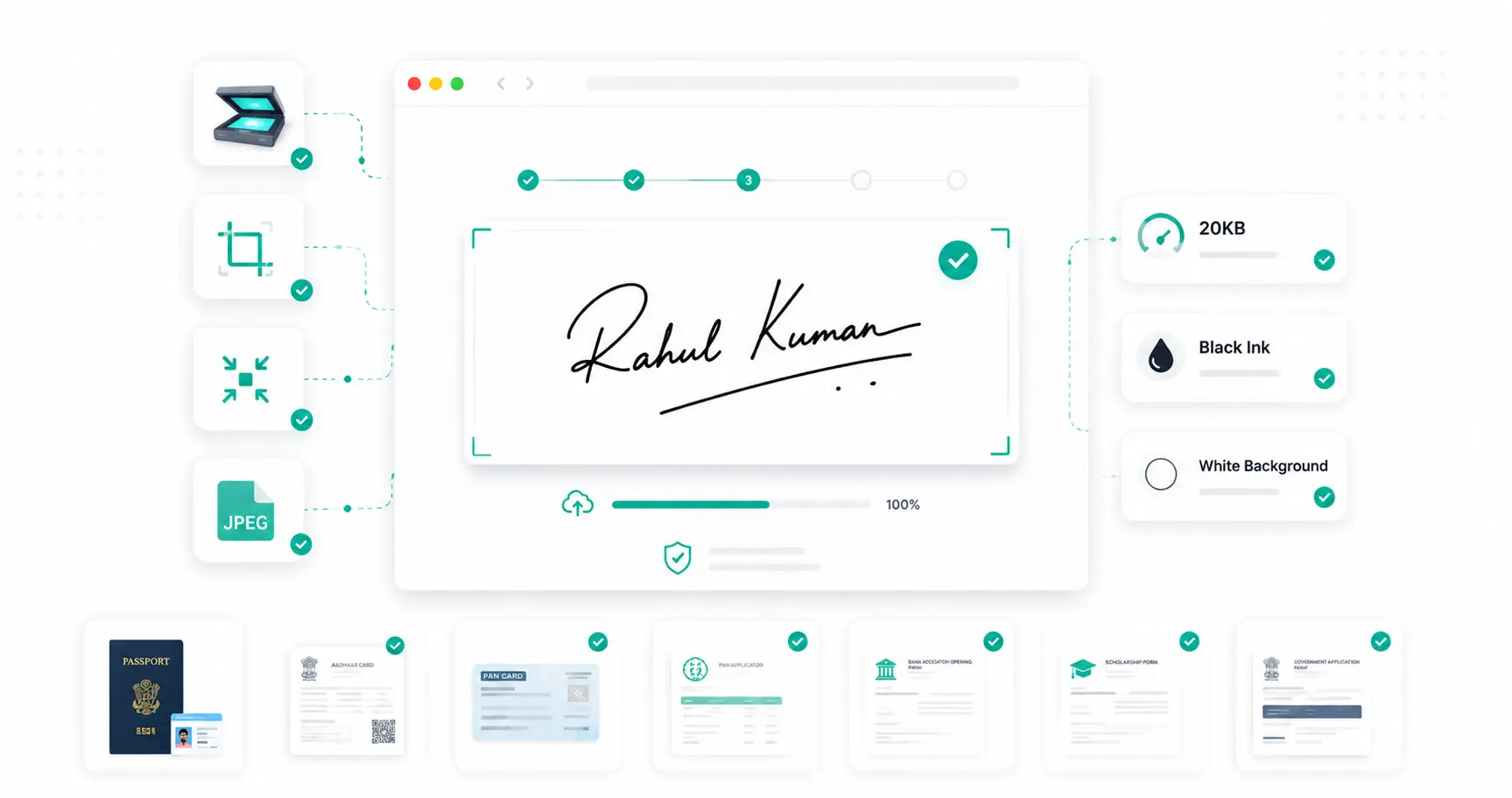
A rejected signature upload is one of the most avoidable reasons a government exam form gets held up. Signatures have their own rules, separate from photograph requirements — and because a signature file is expected to be very small (often under 20KB), small mistakes in how it's created show up immediately as upload errors. Here's how to get it right the first time.
Why Signature Files Have Such Strict Size Limits
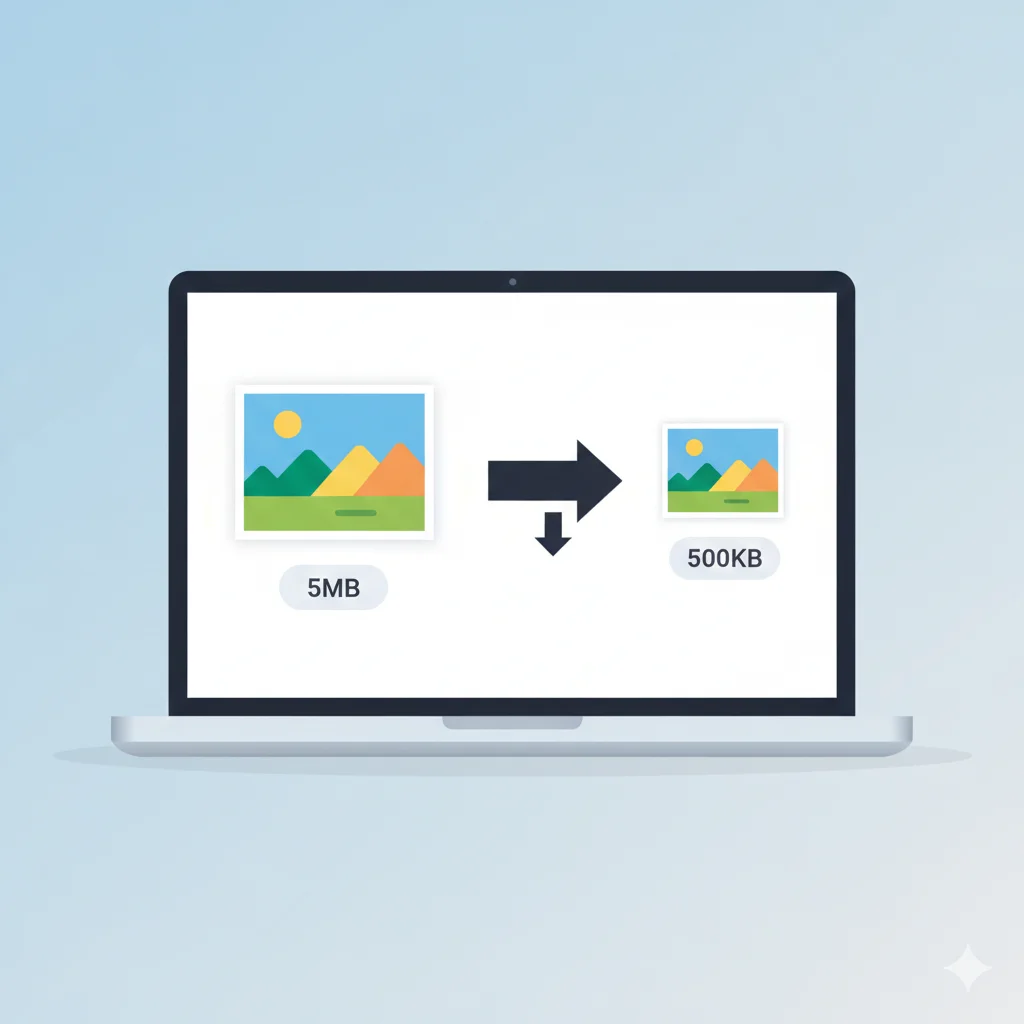
A signature is a simple black-and-white line drawing with very little visual detail compared to a photograph, so portals expect it to compress to a much smaller file — typically 10KB to 20KB. A signature file that's unusually large usually means it was scanned at too high a resolution or saved with unnecessary colour data.
How to Create a Signature That's Easy to Prepare
- Use black ink on plain white paper — this gives the cleanest contrast and compresses most efficiently.
- Sign at a reasonable size — roughly matching the final required dimensions avoids excessive scaling later.
- Scan or photograph in good, even lighting — avoid shadows falling across the paper.
- Avoid glossy or lined paper — texture and ruled lines add visual noise that increases file size.
What DPI Should You Scan At?
For a signature, scanning at 200–300 DPI is more than sufficient. Higher resolutions (600 DPI and above) produce unnecessarily large files that then need heavier compression to meet a 20KB limit, which can introduce visible artifacts. A moderate DPI paired with a tight crop generally gives a cleaner result than a very high-resolution scan compressed hard.
Cropping Your Signature Correctly
Crop as close to the signature strokes as possible, leaving only a small margin. A tightly cropped signature has less blank background to compress, which both reduces file size and keeps the strokes sharper at the target size. Use a crop tool to remove excess white space before compressing.
Signature Requirements by Exam
| Exam / Portal | Signature Size | Notes |
|---|---|---|
| SSC | 10KB–20KB | Black ink, white background |
| Railway (RRB) | ~20KB | Consistent with photo submission |
| IBPS / SBI | 10KB–20KB | Signed on white slip, scanned |
| UPSC | Portal-specified, usually under 40KB | Check current notification |
| NEET / JEE / CUET | Usually below 20KB–50KB | Format and size vary by year |
Common Upload Errors and How to Fix Them
"Signature file too large"
Usually caused by scanning at too high a DPI or saving as PNG. Crop tightly, then compress with a target-size tool.
"Signature is blurry or illegible"
Often the result of over-compressing a low-resolution scan. Rescan at 200–300 DPI with good lighting rather than compressing a poor-quality image harder.
"Invalid file format"
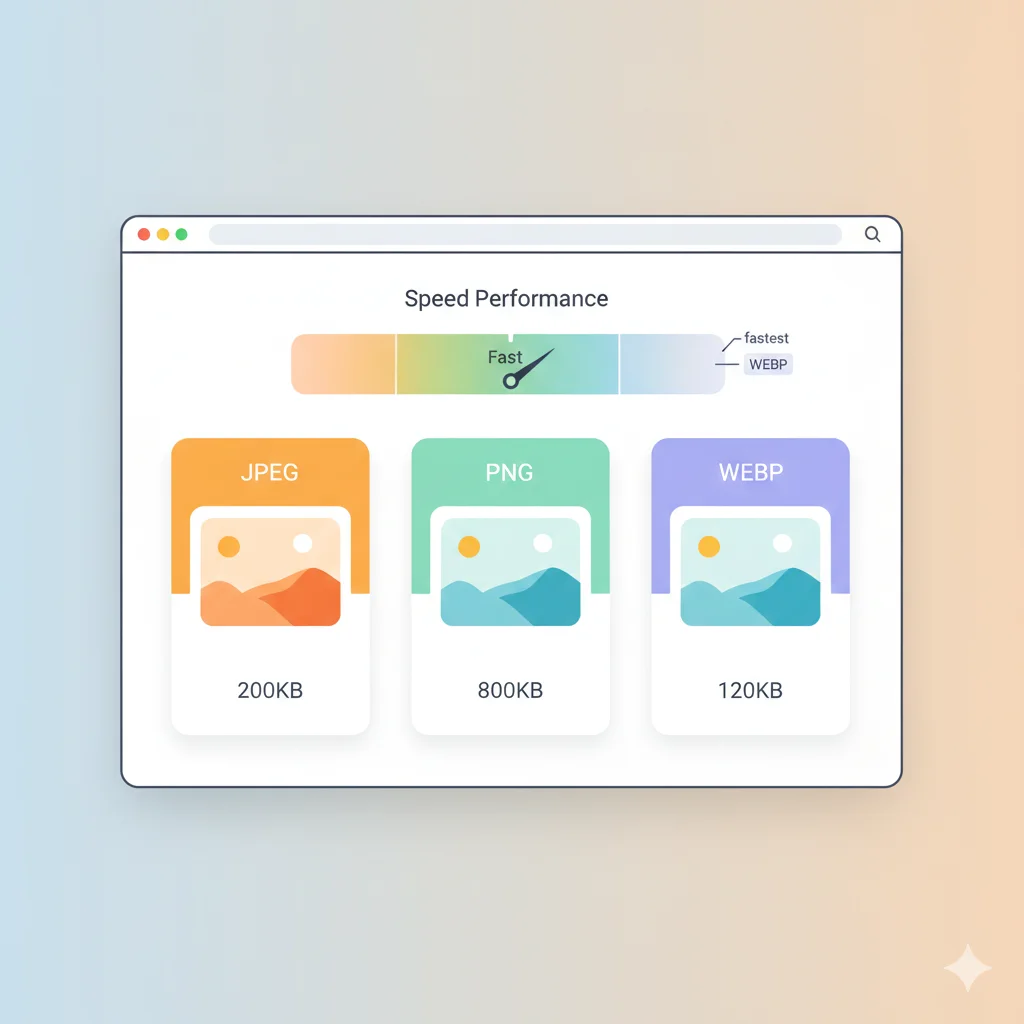
Most portals expect JPG or JPEG. If your scan saved as PNG, convert it with a PNG to JPG tool before uploading.
Uneven background or visible shadows
Re-scan or re-photograph on plain white paper with even lighting; shadows and paper texture both increase file size unnecessarily.
Step-by-Step: Preparing Your Signature
- Sign in black ink on plain white paper.
- Scan or photograph at 200–300 DPI in good lighting.
- Crop tightly around the signature using a crop tool.
- Convert to JPG if needed with a PNG to JPG converter.
- Compress to your exam's specific size limit using a target-size tool such as the Compress Image to 20KB tool.
Frequently Asked Questions
Can I sign digitally instead of scanning a paper signature?
Most government portals still expect a scanned image of a handwritten signature rather than a digitally drawn one, though requirements can vary — check your specific exam's guidelines.
Why is my signature file larger than my photo's limit even though it's simpler?
A signature scanned at very high DPI or saved with unnecessary colour data can end up larger than expected relative to its visual complexity. Scanning at a moderate DPI and cropping tightly usually resolves this.
Does the ink colour matter?
Black ink is standard and gives the cleanest, most compressible contrast against a white background. Blue ink is usually accepted too, but check your exam's specific instructions.
Will compression make my signature illegible?
Not if you start from a clear, well-lit scan. Compression mainly affects fine shading, and a clean black-on-white signature has little of that to lose.
Related Tools
Conclusion
A signature upload only causes problems when the source scan works against you — too high a DPI, too much background, or the wrong format. Sign clearly on white paper, scan at a moderate resolution, crop tightly, and compress to your exam's specific limit, and the upload should go through cleanly.