How to Compress an Image Under 100KB — Without Losing Quality
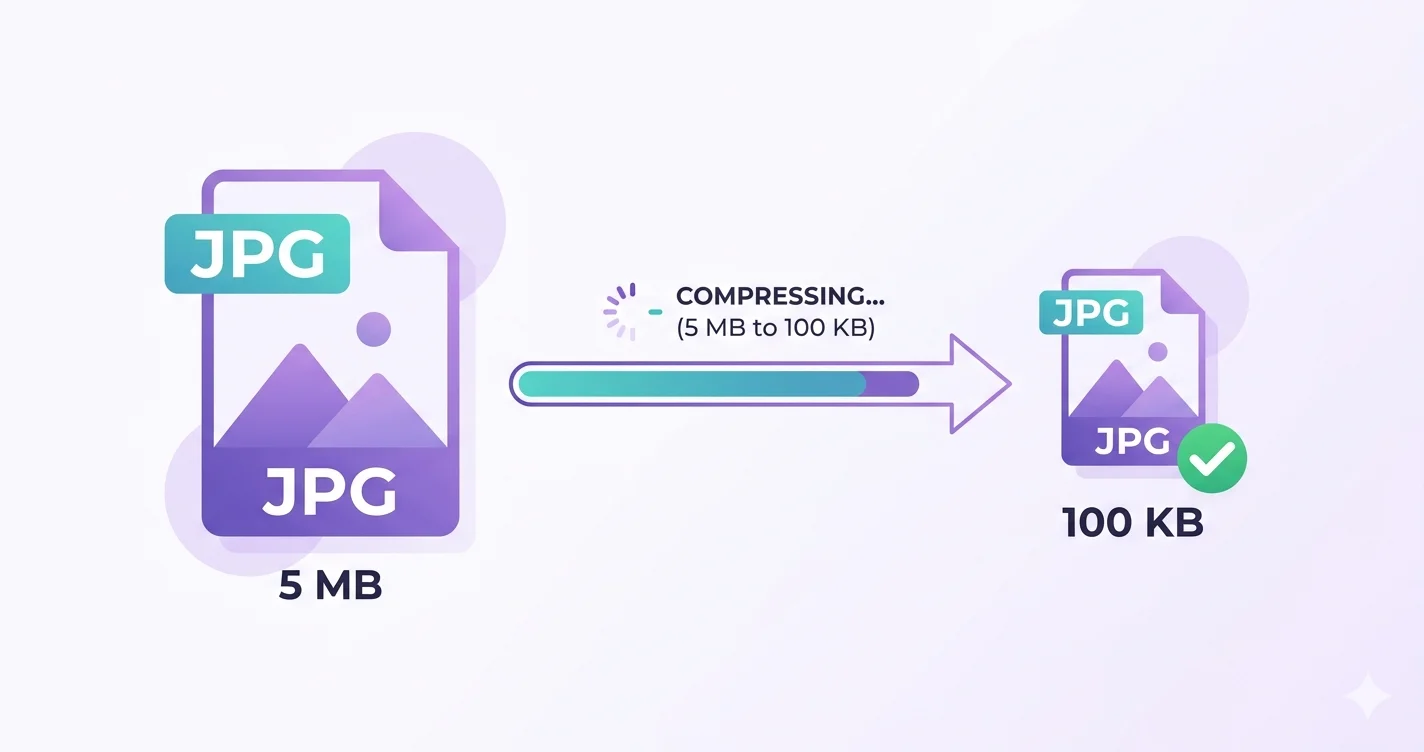
Whether you're filling out a government form, applying for a job online, or uploading a photo to a portal with a strict file size limit, getting an image under 100KB is one of the most common — and frustrating — tasks. Most image editors don't tell you the exact output size until after you've exported. This guide shows you exactly how to do it in seconds, for free.
Why Do Websites Limit Image Size to 100KB?
Government portals, university admission forms, job application sites, and HR software often enforce strict file size limits — usually between 20KB and 200KB. These limits exist because:
- Servers have limited storage for millions of applicants
- Older systems have upload size restrictions built in
- Faster page loads for admin portals reviewing submissions
- Standardised document sizes for printing and archiving
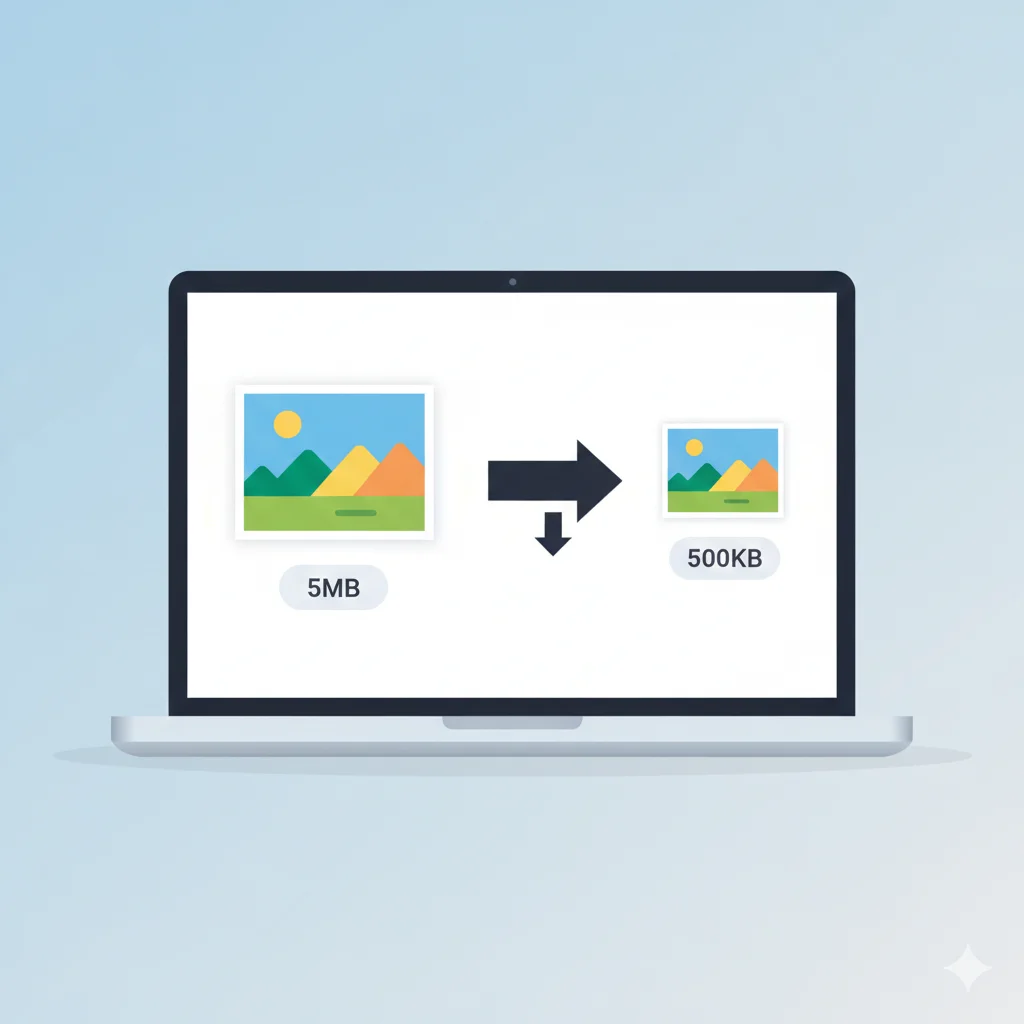
A photo taken on a modern smartphone is usually between 3MB and 8MB — that's 30 to 80 times larger than 100KB. You need to compress it significantly before uploading.
Which File Formats Work Best Under 100KB?
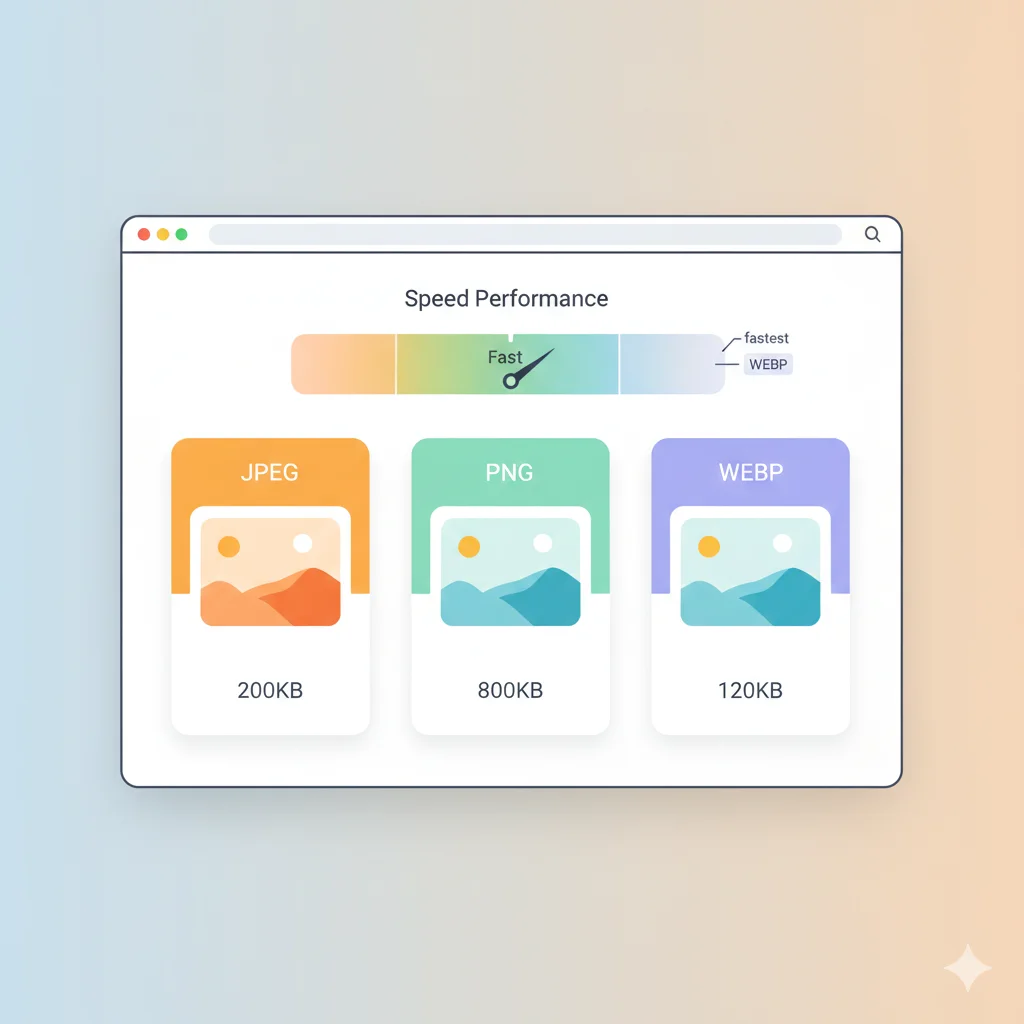
| Format | Typical Size for a Portrait Photo | Best For |
|---|---|---|
| JPG | 20KB – 150KB at medium quality | Passport photos, ID uploads, general forms |
| WebP | 15KB – 100KB at medium quality | Web forms that accept WebP |
| PNG | 200KB – 1MB+ for photos | Not recommended for size limits |
Recommendation: Use JPG for almost all government and job portal uploads. It compresses photos far better than PNG and is universally accepted.
Common Use Cases That Require Images Under 100KB
- Indian government portals (SSC, UPSC, railway forms)
- Passport and visa application photo uploads
- University and college admission forms
- Job application portals (Naukri, LinkedIn, company HR portals)
- Email attachments with size restrictions
- WhatsApp profile pictures and business listings
How to Compress an Image to Under 100KB — Step by Step
Method 1 — Use the Target Size Tool (Recommended)
The easiest method is to use a tool that automatically compresses your image to a specific target size, so you don't have to guess or adjust quality manually.
- Open Compress Image to 100KB on WebAuzar
- Upload your JPG, PNG, or WebP image
- The tool automatically finds the right quality level to hit 100KB or under
- Download your compressed image
This method uses a binary search algorithm that tests dozens of quality levels in milliseconds to find the highest quality version of your image that still fits under 100KB.
Method 2 — Compress to Smaller Targets
Some portals require even smaller sizes. Use these tools for stricter limits:
- Compress Image to 20KB — for strict government ID uploads
- Compress Image to 50KB — for passport photo portals
- Compress Image to 200KB — for email and document uploads
Tips to Get the Best Quality Under 100KB
- Crop before compressing — Remove unnecessary background. A tightly cropped portrait photo compresses much better than a wide shot with a busy background. Use the free crop tool first.
- Resize before compressing — A 4000×3000px image compressed to 100KB will look worse than a 1000×750px image compressed to the same size. Use the image resizer to reduce dimensions first.
- Use JPG not PNG — Converting a PNG to JPG before compression often saves 60–80% of file size. Use the PNG to JPG converter if your image is a PNG.
- Avoid double compression — Once you have your image under 100KB, don't open and re-save it in another tool. Each re-save adds more quality loss.
What Happens If I Compress Too Much?
Over-compressing a JPG causes visible artifacts — blocky patches, smeared edges, and colour banding. This is especially noticeable in:
- Face photos (skin looks patchy)
- Text within images (letters look blurry)
- Areas with sharp colour contrast
The target-size compression tool on WebAuzar avoids this by finding the highest quality level that still meets your size target — it never over-compresses unnecessarily.
Compress Multiple Images at Once
Need to compress 10 or 20 passport photos for a batch application? Upload all of them at once and download as a ZIP file. All processing happens in your browser — no files are uploaded to any server.
Conclusion
Getting an image under 100KB doesn't require Photoshop or any paid tools. Crop tightly, resize to a reasonable dimension, then use a target-size compressor to hit exactly the limit you need. For most use cases — government forms, job portals, university admissions — JPG compressed to 100KB gives you a clean, sharp image that passes every upload validation.